New: translate, edit, ask about or explain any text you select

Private Writing Assistant
Check grammar and rewrite text with AI that runs on your device. Free.
 Add to Chrome
 Add to Safari
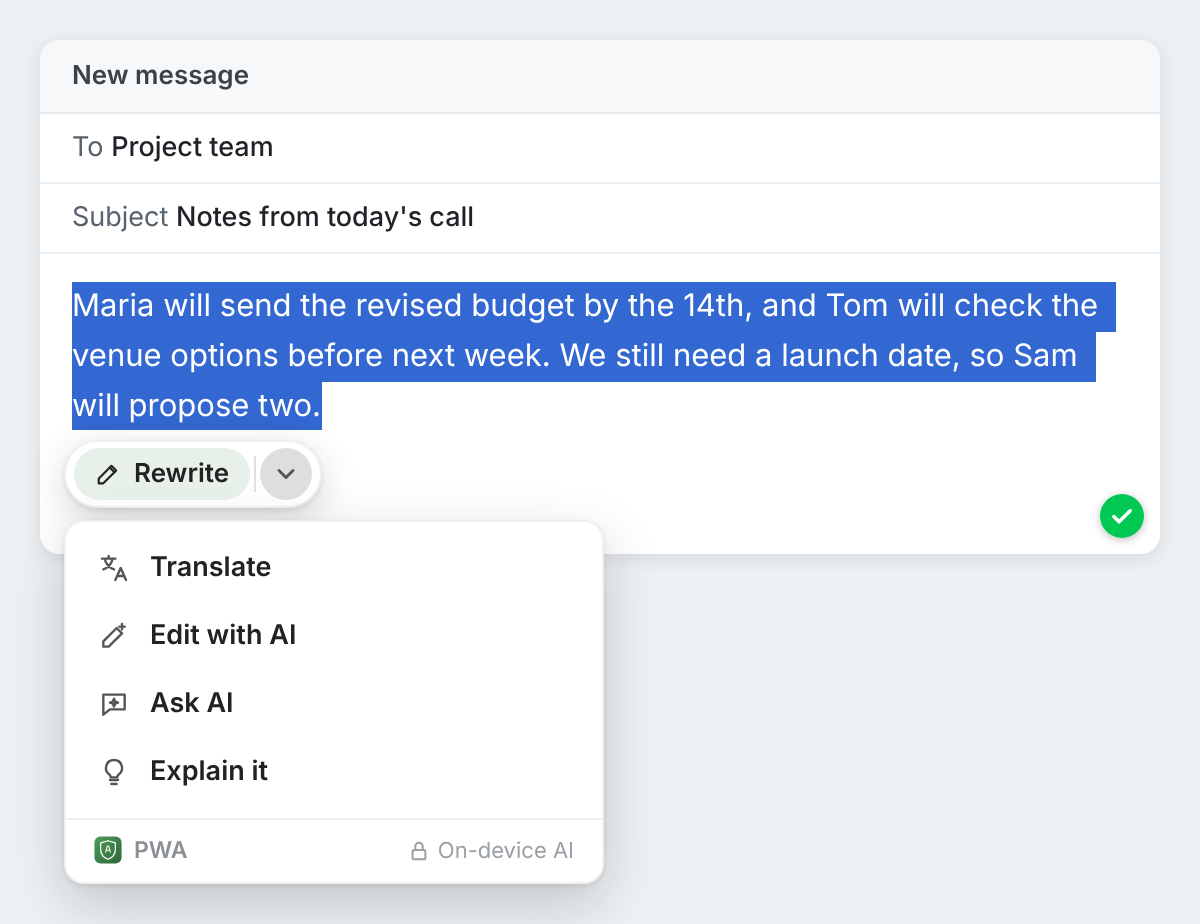
Until the latest version, selecting text in a field gave you one button: Rewrite, or a button to fix the mistakes when there were some. Now a small arrow next to it opens a menu with four more things to do. And selecting text anywhere on a page, not just where you type, brings up a button too.
In short
Private Writing Assistant can now do more with the text you select than check and rewrite it. Its menu adds Translate, Edit with AI, Ask AI and Explain it. On ordinary page text, outside any field, you get Translate, Ask AI and Explain it, and, once you turn the double-click lookup on, a double-click on a word shows its definition, translated when it's in another language. All of it runs with Chrome Built-in AI on your computer.
Four new actions in the menu
Select some text in an email, a comment box or a document, then click the arrow next to the button that appears:
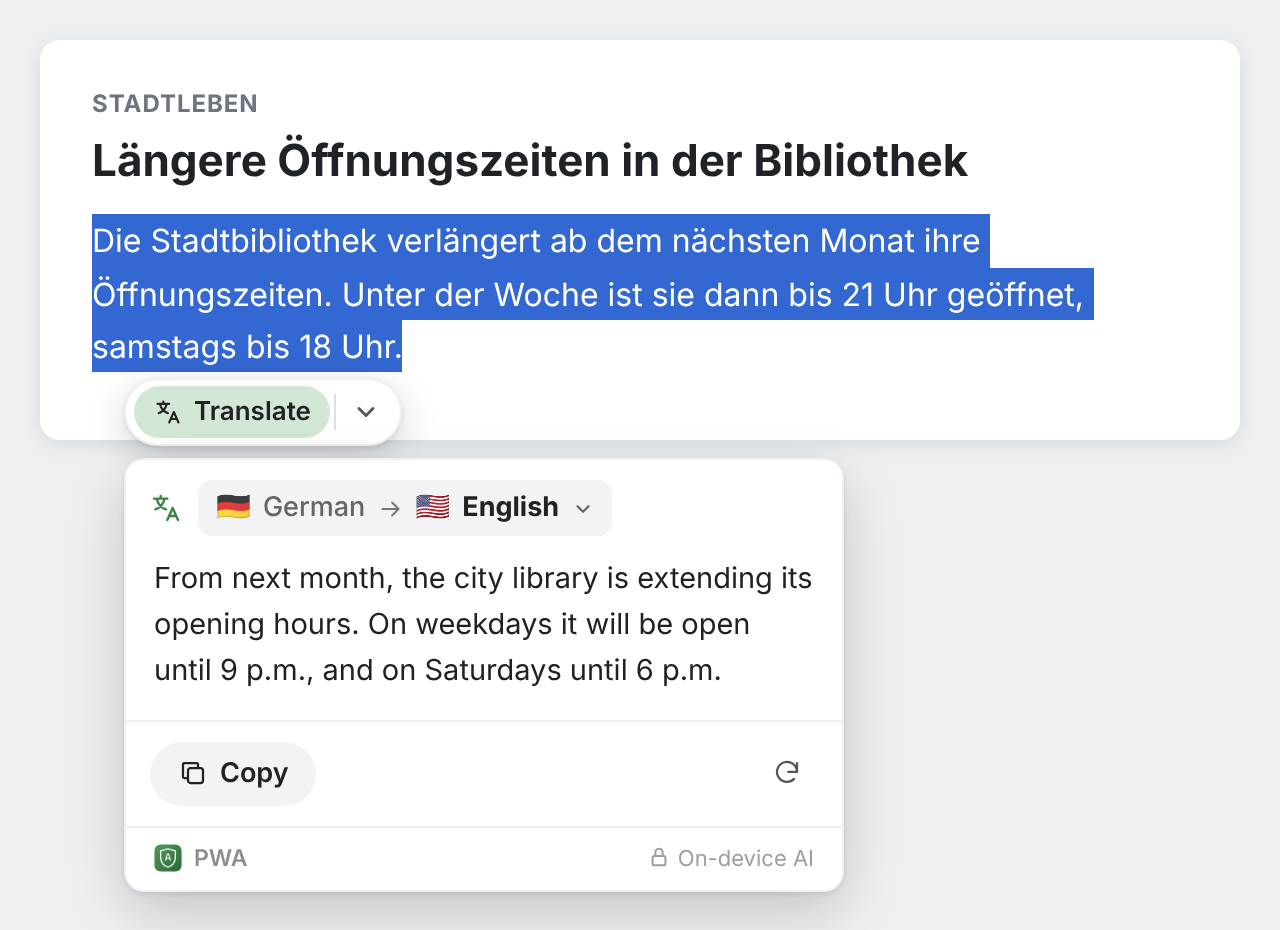
- Translate turns the selection into another language and shows the result in a card. Chrome's own translation handles the language pairs it knows; for the rest, the on-device model translates. The card suggests the language you picked last time.
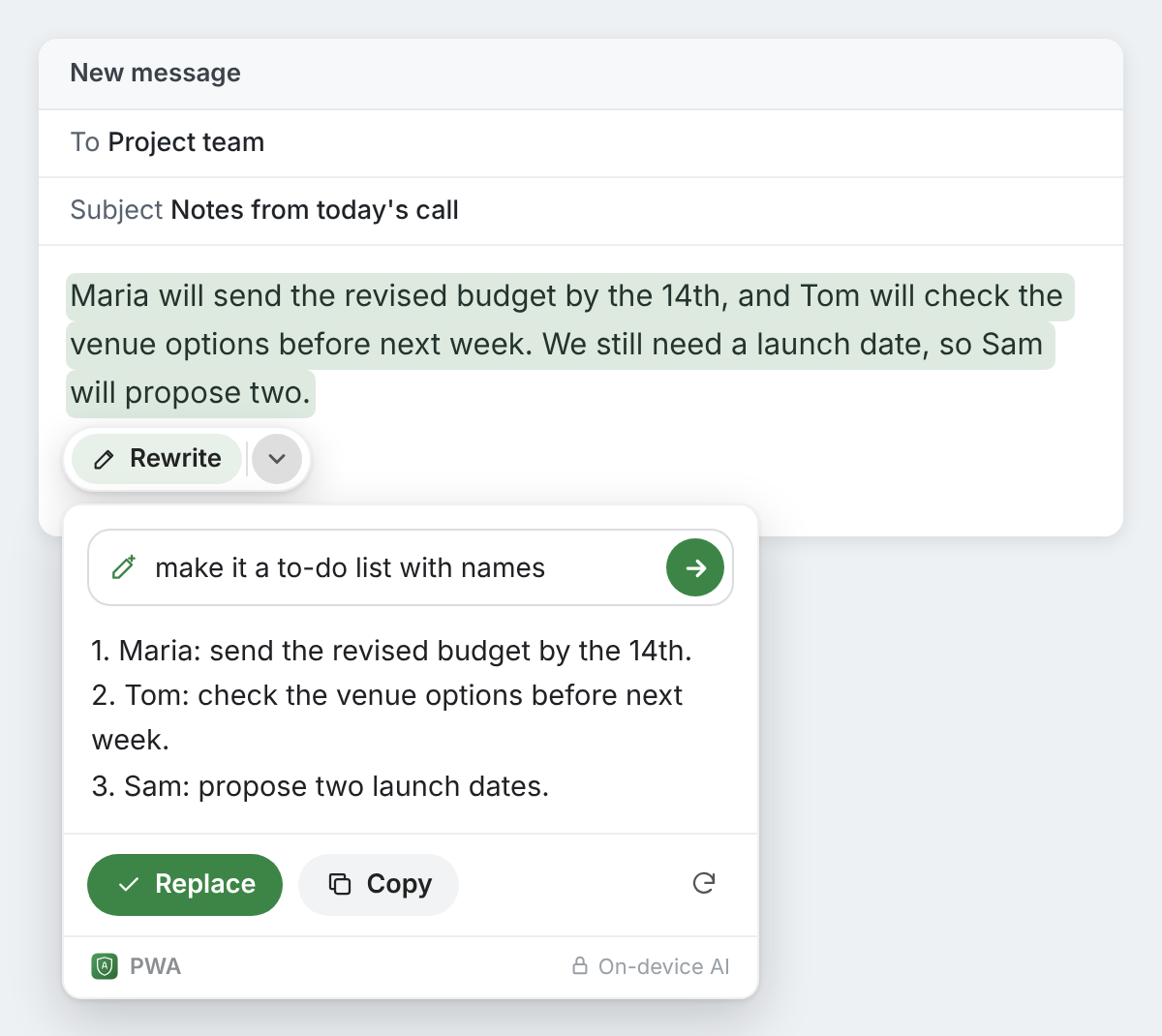
- Edit with AI takes an instruction in your own words, such as “turn this into a numbered list” or “make the second sentence a question”, and edits the selection to match. You see the result first, and Replace puts it in place of your text.
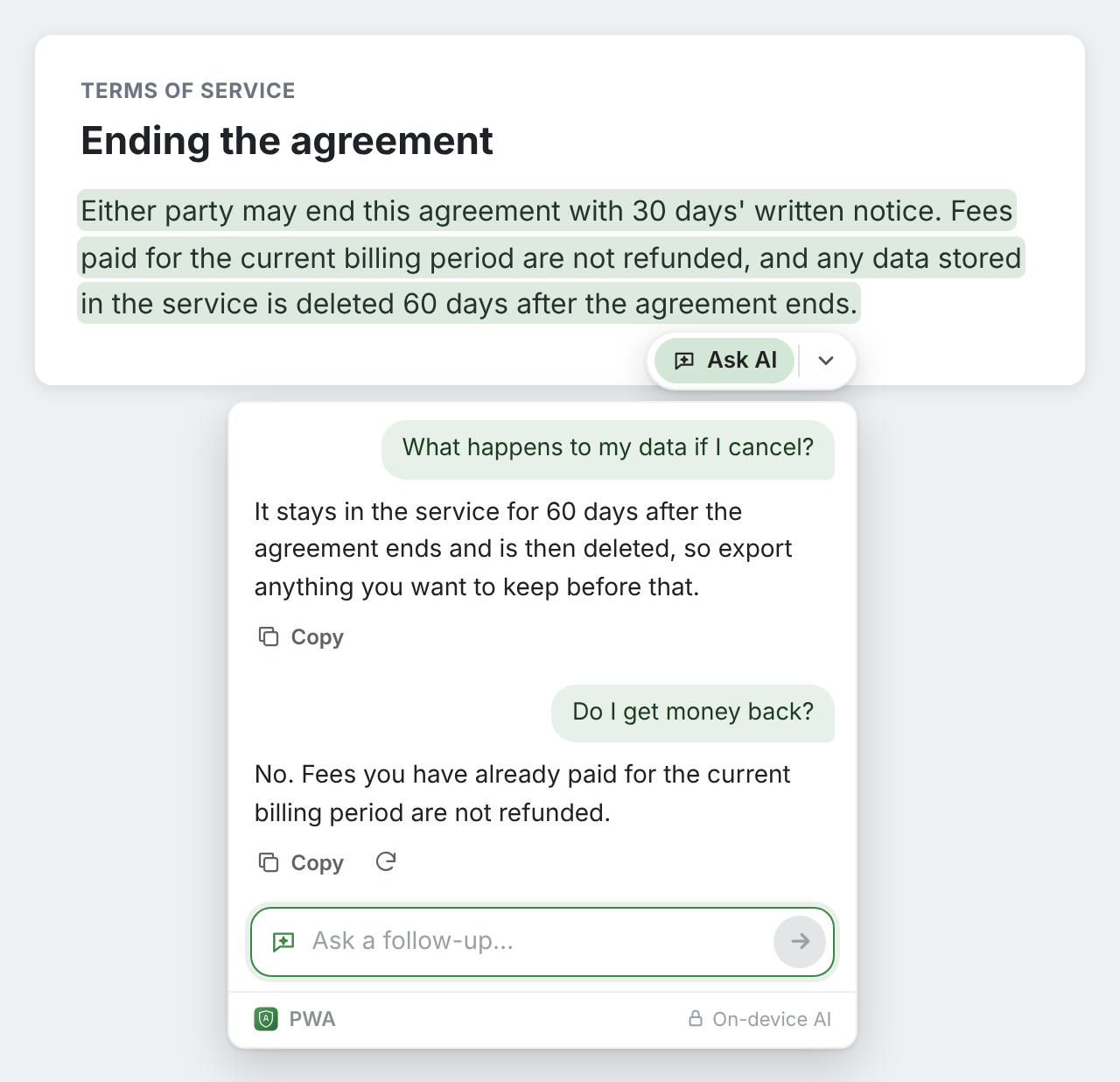
- Ask AI answers questions about the selection in a card next to it, and you can ask follow-ups. Each answer has a Copy button. Nothing replaces your text.
- Explain it explains the selection in plain words, in the language Chrome is set to, using the paragraph around it for context.
An Ask AI or Explain it conversation lasts while its card is open. Close the card and the conversation is gone.
Select text anywhere on a page
Until now, the extension only worked where you type. Now, select a sentence in an article, a contract shown in the browser or a help page, and a button appears with Ask AI, Translate and Explain it. The page itself is never changed: there is nothing to fix and nothing to replace. When the text isn't in one of your languages, Translate comes first.
Switch on “Double-click on a word for synonyms and definitions” in the extension's menu, and a double-click on a single word on a page shows what it means. When the word is in another language, the card translates it into Chrome's language as well. In text fields, a double-click still opens the synonyms and definition described in our post on looking up a word without leaving the page.
What you might use it for
- A clause in a contract written in a language you half know: select it and choose Explain it.
- A long email thread in English when your team works in German: translate the paragraph that matters.
- Meeting notes typed in a hurry: select them, choose Edit with AI and ask for a list of actions with names.
- A sentence you're not sure you understood: Ask AI what it commits you to, then ask a follow-up.
The menu learns what you use
The button next to a selection now shows the action you use most, and the menu lists the rest, most used first. If you mostly translate, Translate moves to the front. If you always rewrite in the same style, that style does. When the selection has two or more mistakes, the button to fix them keeps the front spot.
Still on your computer
Like checking and rewriting, the new actions run with Chrome Built-in AI on your own computer. The text you select, your instructions and questions, and the answers are never sent to us or to any third party, such as an AI service. There's no account to sign up for either, so we don't know who you are. Your last few Edit with AI instructions and Ask AI questions are kept in Chrome's storage on your computer, so you can pick them again. Usage stats, unless you switch them off, record which actions are used and, for Translate, which languages, never the text. How it works has the full list.
Chrome updates the extension by itself. New here? Add Private Writing Assistant and select any text to see the menu.