Dictate: say it, and it's typed where your cursor is

Private Writing Assistant
Check grammar and rewrite text with AI that runs on your device. Free.
 Add to Chrome
 Add to Safari
Some sentences are faster said than typed: a quick reply while your other hand holds a coffee, a first draft you'd rather talk through, a long note after a meeting. Version 1.5 of Private Writing Assistant lets you just say them. Click into a text box, choose Dictate, and talk.
In short
Dictate is new in version 1.5 of Private Writing Assistant for Chrome. Click into an empty text box, open the button's menu and choose Dictate: what you say is typed at the cursor as you speak, in 17 languages. Chrome's speech recognition turns your voice into text on your computer, so neither your voice nor your words are sent to us or anyone else.
Start dictating in four steps
- Click into an empty text box, or press Enter on a blank line and wait a moment. A button appears at the cursor with Write with a prompt on it.
- Click the small arrow next to it and choose Dictate. The language it will listen in is shown on the same row.
- Speak. Each phrase goes in at the cursor once you finish it, and the words you're still saying show in grey right after it.
- Click Stop dictating (the square), or press Escape, when you're done. Typing, clicking elsewhere or 15 seconds of silence stop it too, and what you said stays in the text box.
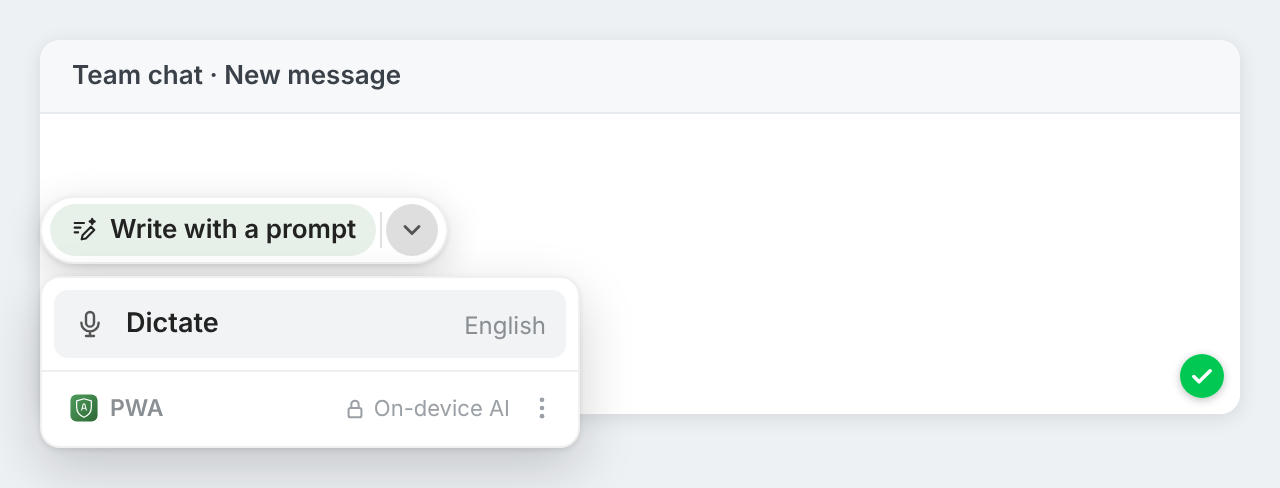
The more you use Dictate, the sooner it moves onto the button itself, so it's one click away in the text boxes where you use it.
Watch your words appear as you talk
While you dictate, the button turns into a slim bar: Listening…, the language, and the square to stop. Dictate adds spaces between phrases and starts each sentence with a capital letter when the speech recognition doesn't. In Japanese, Chinese and Thai, it leaves out the spaces those languages don't use.
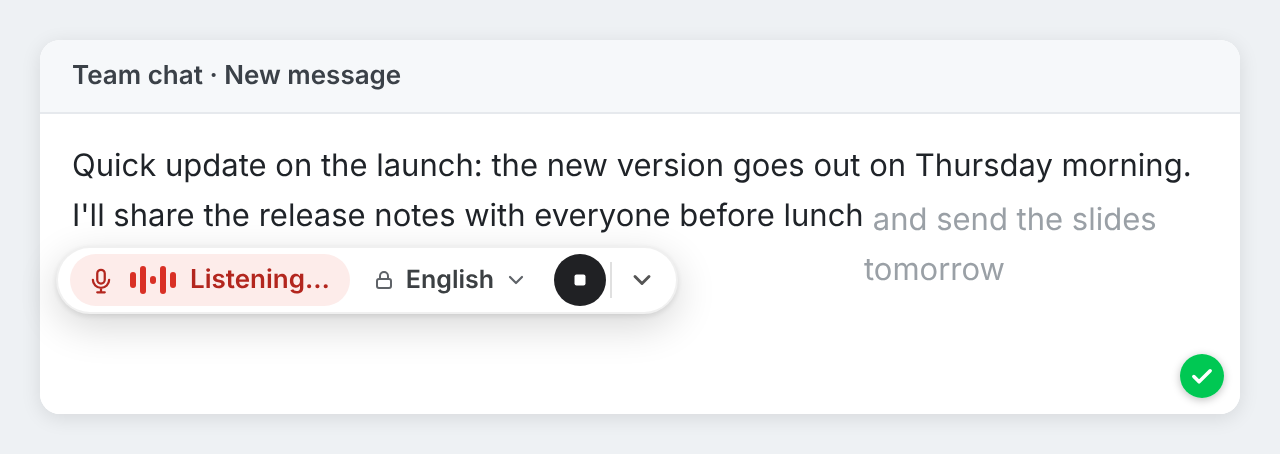
Changed your mind? The arrow on the bar still offers Write with a prompt: it stops dictating, keeps what you said and opens the writing card, so you can have the AI turn your spoken notes into a polished draft.
17 languages, chosen for you
Dictate listens in the language of the text you're writing. In an empty box, it takes the language you last dictated on that website, the one you picked in the settings, or your browser's language. The language button on the bar switches it at any time, and the settings page has a Dictation language choice if you always want the same one.
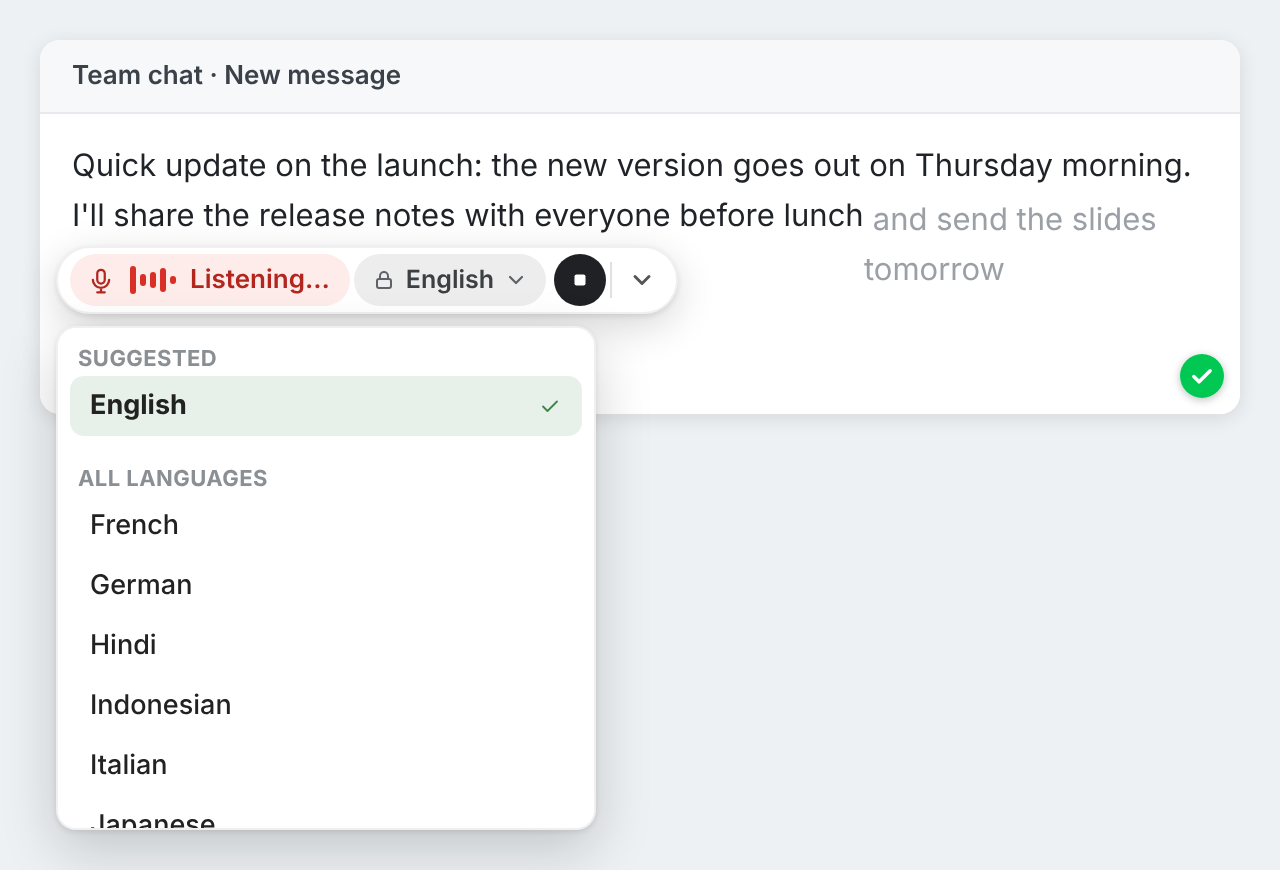
Chrome can turn speech into text on your computer in English, Chinese (Simplified and Traditional), French, German, Hindi, Indonesian, Italian, Japanese, Korean, Polish, Portuguese, Russian, Spanish, Thai, Turkish and Vietnamese. When you write in another language, Dictate says so and offers your other languages instead of guessing.
The first time: two short questions
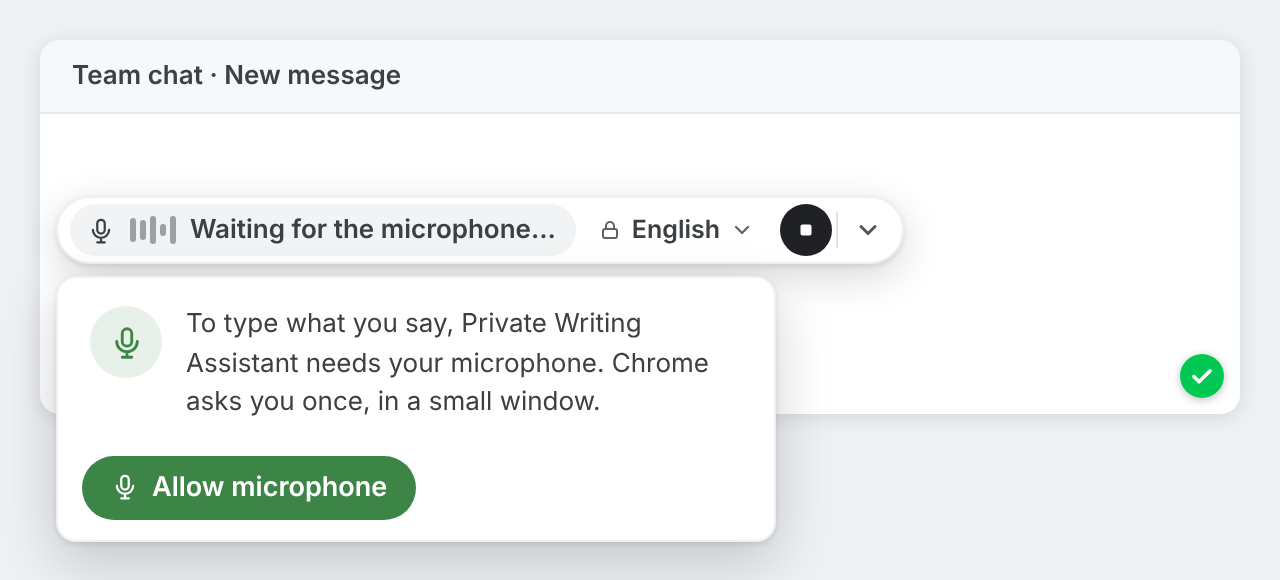
- The microphone. Chrome asks once whether Private Writing Assistant may use it. A small window opens; click Allow microphone, then Allow in Chrome's question. The microphone is used only while you dictate.
- The language. Chrome downloads its speech recognition for a language once. The first time you dictate in a language, click Turn on in the small window that opens. After that, it works offline.
Dictate needs a recent version of Chrome on a computer. For now, it's in the Chrome extension only; the Safari version doesn't have it yet.
Your voice stays on your computer
Private Writing Assistant checks and rewrites your text with Chrome Built-in AI, on your computer. Dictate works the same way: it uses Chrome's speech recognition only in its on-device mode, so your voice is turned into text right there and never goes to an online speech service. Neither your voice nor your words are ever sent to us or to any third party. There's no account to sign up for, so we don't know who you are. Usage stats, which you can switch off in the settings, count things like how long dictation ran, never what you said. How it works explains it in full.
Next time your hands are busy or your thoughts run ahead of your fingers, click into a text box and say it.