Quick actions: AI one click from any text, and off when you want quiet

Private Writing Assistant
Check grammar and rewrite text with AI that runs on your device. Free.
 Add to Chrome
 Add to Edge
 Add to Brave
 Add to Opera
 Add to Vivaldi
 Download for Mac
 Get it from Microsoft Store
Select a sentence anywhere in Chrome and a small bar appears under it, ready to rewrite, translate or explain it. That bar now has a name, Quick actions, and with version 1.5.1 of Private Writing Assistant it also has switches, so you decide where it shows up and where it stays out of the way.
In short
Quick actions is the small bar that Private Writing Assistant shows under text you select or paste, and in empty text boxes. It offers Rewrite, Translate, Edit with AI, Ask AI, Explain it, Summarize, Write with a prompt and Dictate, all run by AI on your computer. You can turn it off on one website or everywhere from its ⋮ menu, and back on from the popup or the settings page.
One small bar, a whole toolbox
Quick actions save you the copy, switch tab, paste and copy back routine. The bar appears where you're already working and offers what fits the text in front of you:
- Text you select in a text box: Rewrite (or Fix, when there are mistakes), plus Translate, Edit with AI, Ask AI and Explain it in the menu, and Summarize for longer passages.
- Text you select on a page: Ask AI, Translate, Explain it and Summarize. The page itself is never changed.
- Text you paste: the same bar, so you can polish or translate what you just brought in.
- An empty text box or a new line: Write with a prompt and Dictate.
- AI chat sites such as ChatGPT: Improve prompt, a moment after you stop typing.
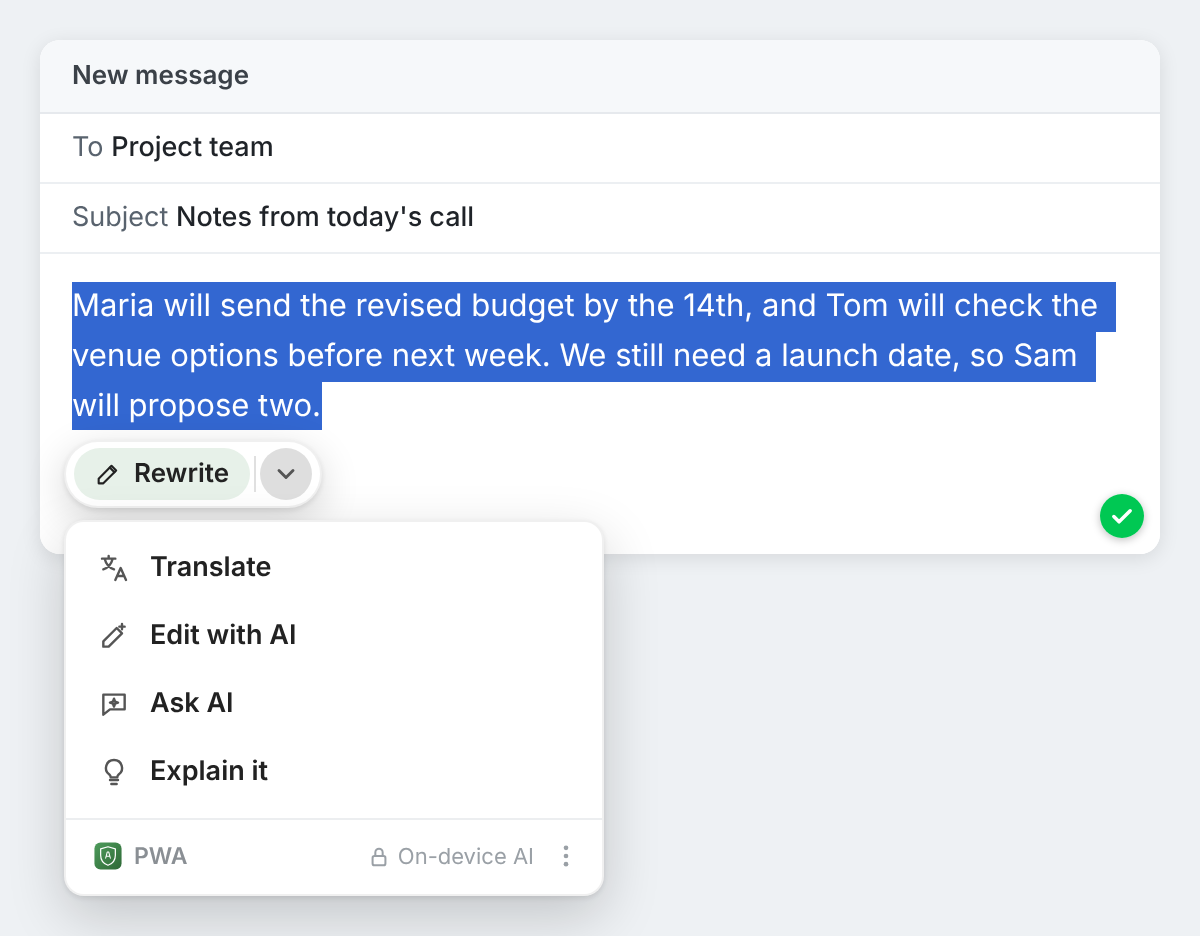
The bar learns from you. The action you use most moves onto the bar itself, so it's one click away, and the menu lists the others in the order you use them.
Less noise after a paste
Pasting a word or two into a search box or a chat doesn't need a toolbar. Quick actions now appear after a paste only when it's at least four words long, so short pastes stay quiet. If you never want the bar after pasting, switch off After pasting text in the settings; selecting text still brings it up.
Turn quick actions off on one site, or everywhere
Some websites have their own tools, and some days you just want a clean screen. You can turn Quick actions off from the bar itself:
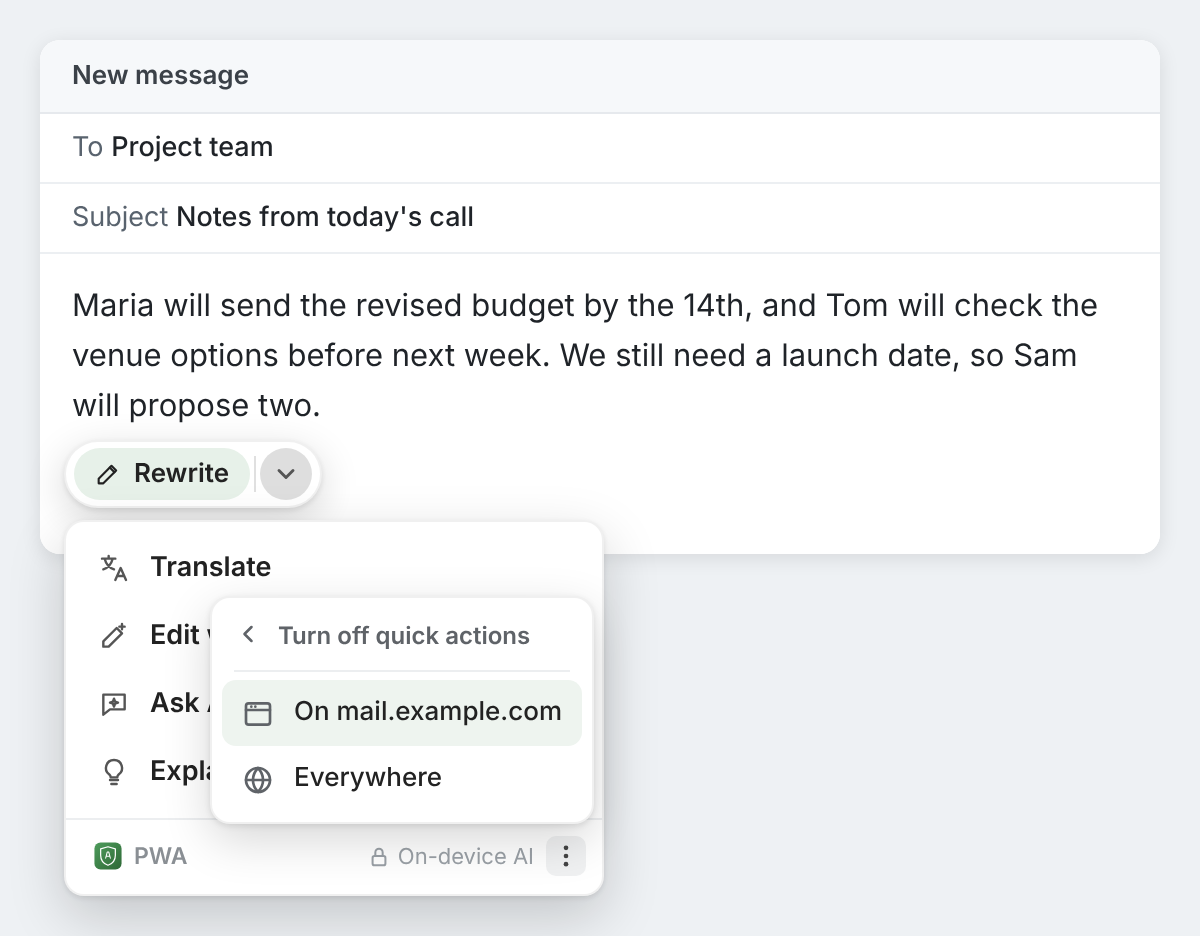
- Open the bar's menu with the arrow, or any card it opened, such as Translate or Ask AI.
- Click ⋮ at the bottom of the card, next to On-device AI.
- Choose Turn off quick actions.
- Pick On followed by the website's name to turn them off there only, or Everywhere.
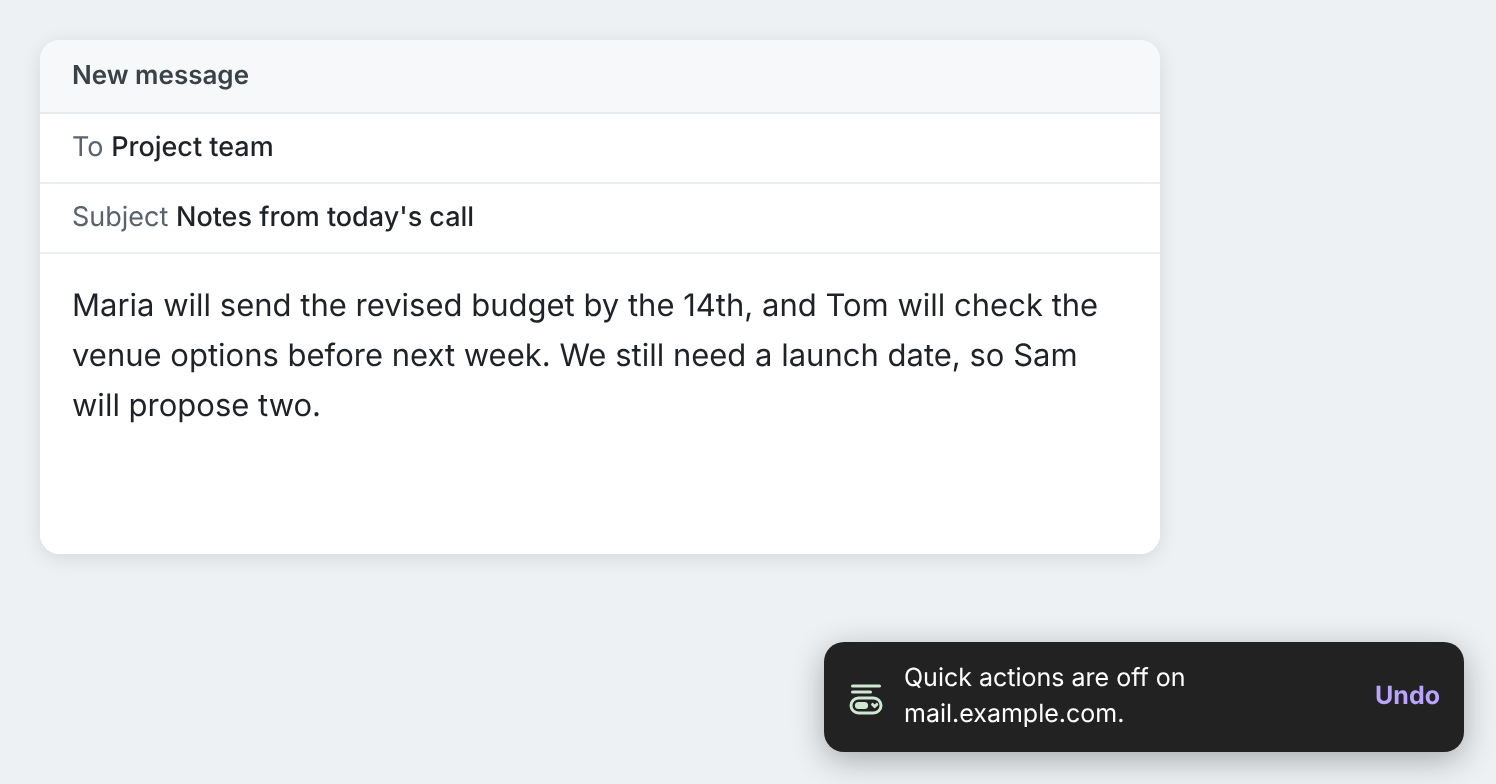
A message in the corner of the window confirms it, with Undo in case you clicked by mistake. Spelling and grammar checking keeps working as before; only the bar goes away.
Turn them back on from the popup or the settings
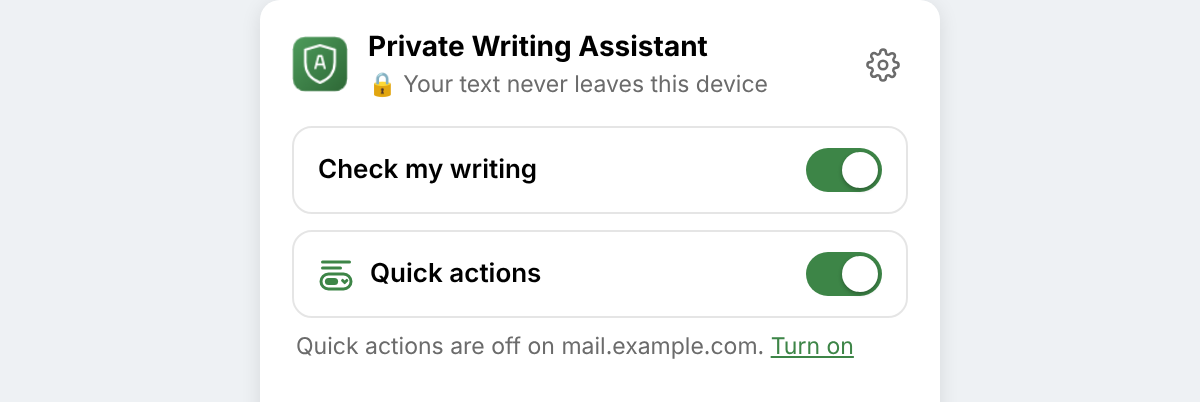
Click the Private Writing Assistant icon in Chrome's toolbar to open the popup. The Quick actions switch turns the bar on or off everywhere. On a website where you turned it off, a line under the switch says so, and Turn on brings it back for that site.
The settings page has every option in its Quick actions section:
- Quick actions: the main switch for the bar everywhere.
- After pasting text: whether the bar also shows after a paste.
- In empty fields and on new lines: whether Write with a prompt and Dictate are offered there.
- Off on these websites: every site you turned it off on. The bin icon next to a site turns Quick actions back on there.
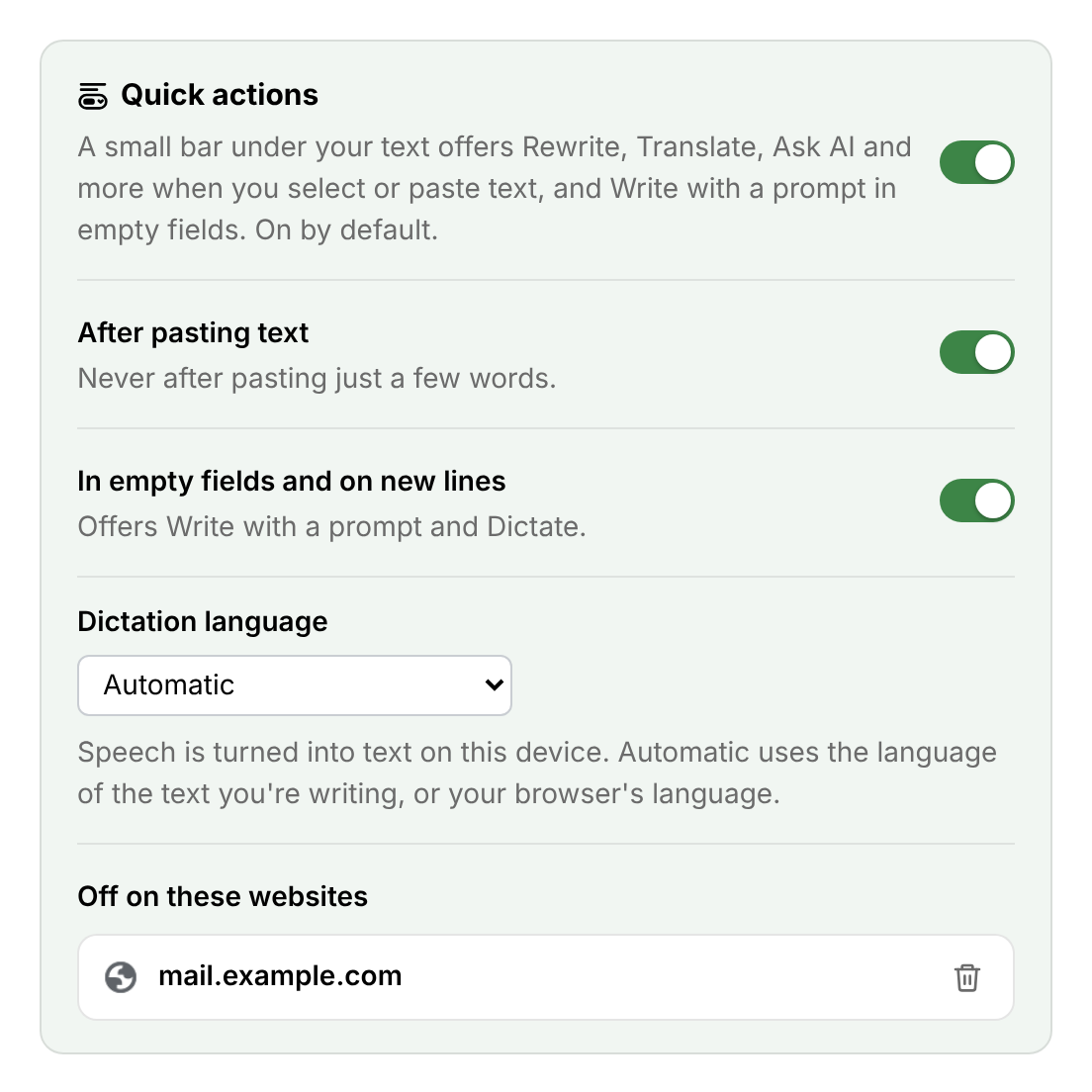
To get to the settings page, click the gear in the popup, or choose Settings from the ⋮ menu of any card.
What happens to the text you act on
Every quick action is run by Chrome Built-in AI, on your computer. The text you select, paste or write is never sent to us or to any third party, and there's no account to create. Usage stats, which you can switch off in the settings, count things like which action you picked or whether you turned Quick actions off on a site, never the text itself. How it works explains it in full.
Select a sentence you're unsure about, and let the bar under it do the rest.
Add to ChromeAdd to EdgeAdd to BraveAdd to OperaAdd to VivaldiDownload for MacGet it from Microsoft Store