Write with a prompt: a first draft right where you type

Private Writing Assistant
Check grammar and rewrite text with AI that runs on your device. Free.
 Add to Chrome
 Add to Safari
A blank text box asks you for more than words: it asks where to begin. The newest version of Private Writing Assistant offers a way in. Click into an empty field, say in a line what you need, and a first draft appears right there.
In short
Write with a prompt is new in version 1.4 of Private Writing Assistant. Click into an empty text box, or press Enter on a blank line, and a button offers to write for you. Describe what you need in a line, and the draft comes in with its headings, lists and code; Insert puts it where you were typing. It runs with Chrome Built-in AI on your computer.
Write your first draft in four steps
- Click into an empty text box: an email, a form, a post or a page you're writing. A button appears at the cursor: Write with a prompt.
- Click it and describe what to write in your own words. A line is enough, such as “a welcome note for new team members with three tips for the first day”.
- Press Enter or click Write. The text comes in as it's written, and Stop writing keeps what's there so far.
- Click Insert to put the text where your cursor was, or Copy it. Undo in the notice that follows takes it out again.
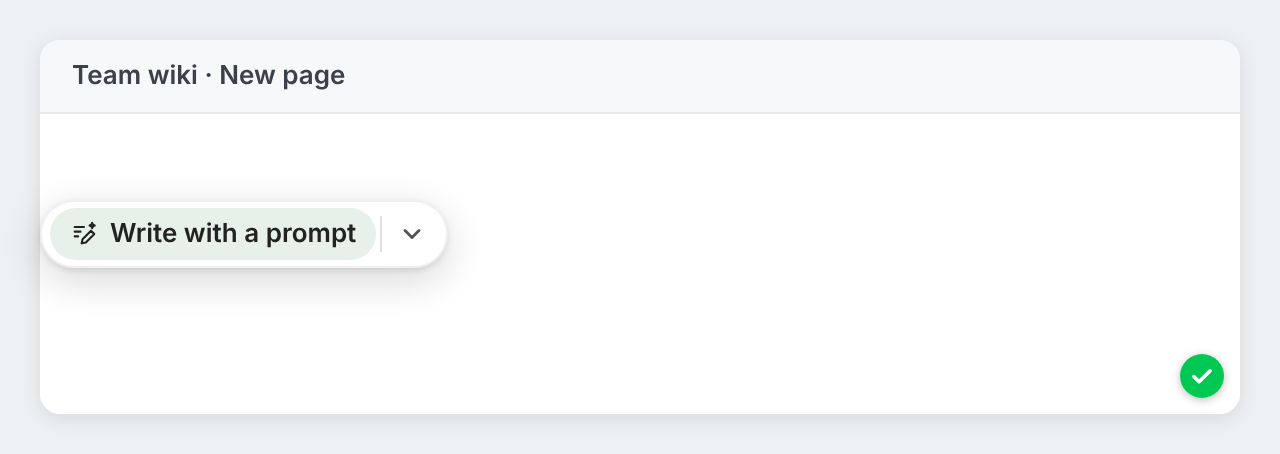
The box remembers your last four prompts that worked, so a request you make every week is one click away.
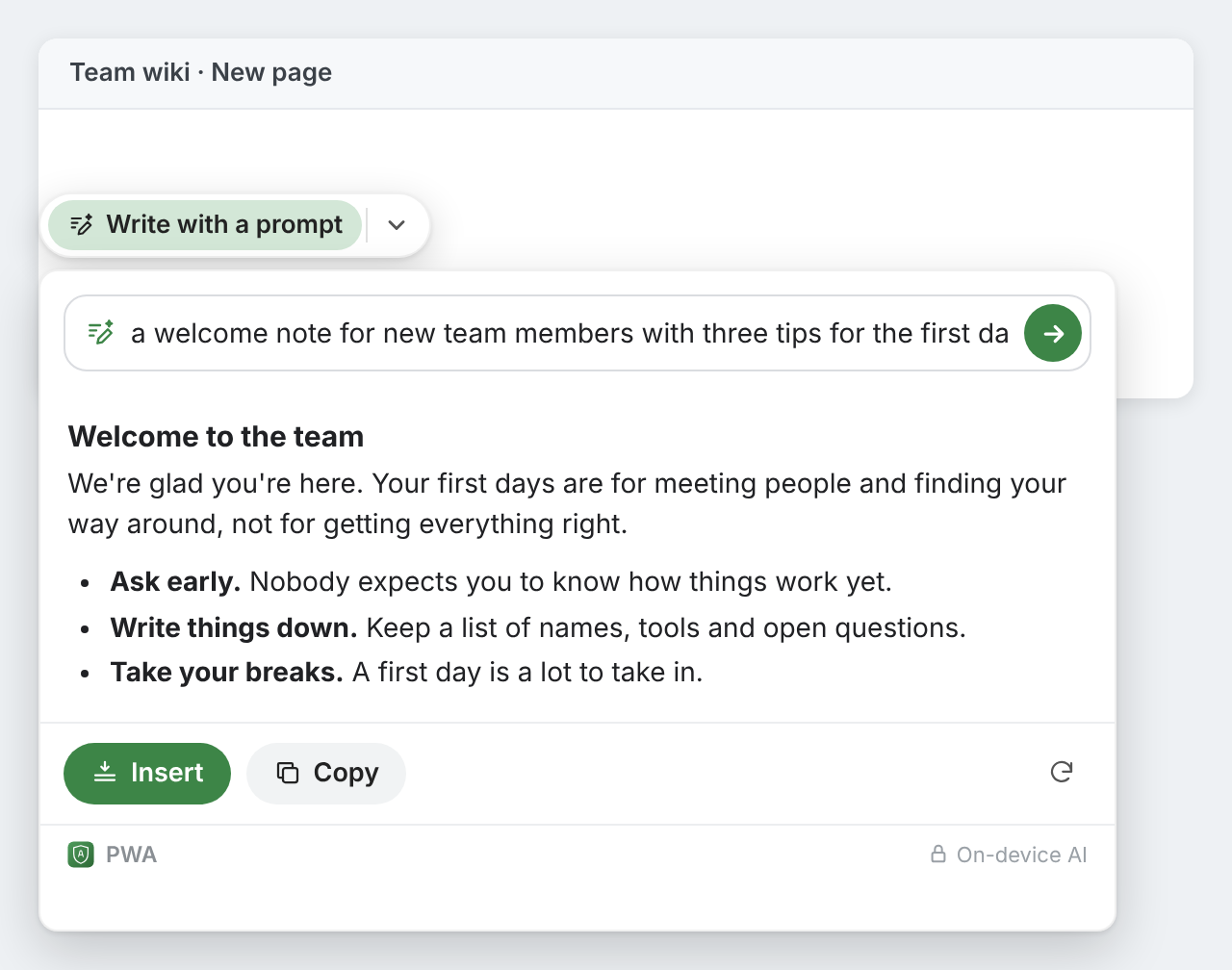
Continue on a fresh line
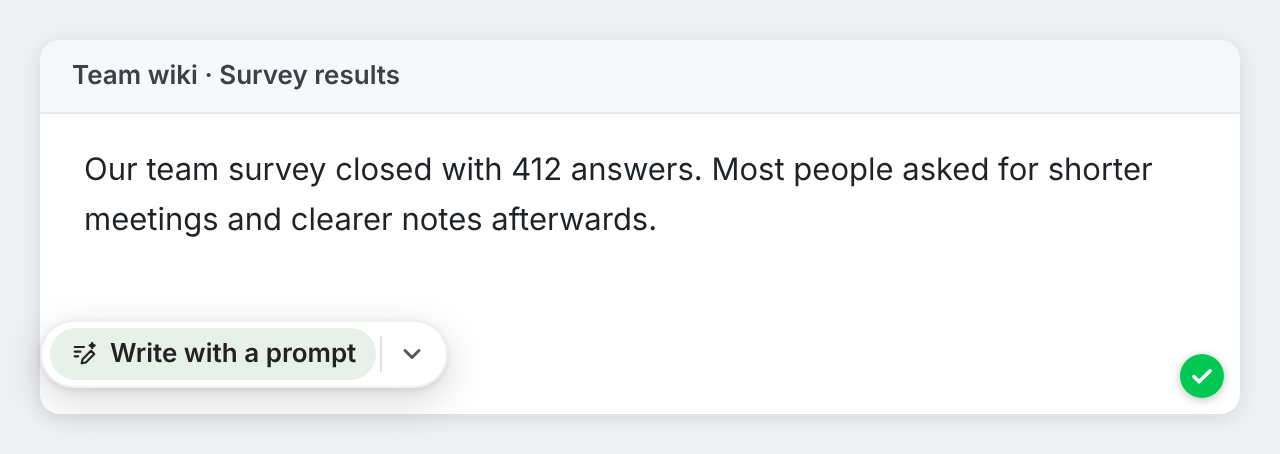
You don't need an empty field. In text you've already written, press Enter to start a blank line and wait three seconds: the button shows up on the new line. Ask for what comes next, such as “a short conclusion with next steps”, and the text above the cursor goes along, so the new part follows on from yours.
The draft is in the language of your request when that's clear, otherwise in the language of the text around the cursor. Ask in Spanish and you get Spanish.
Formatting survives the insert
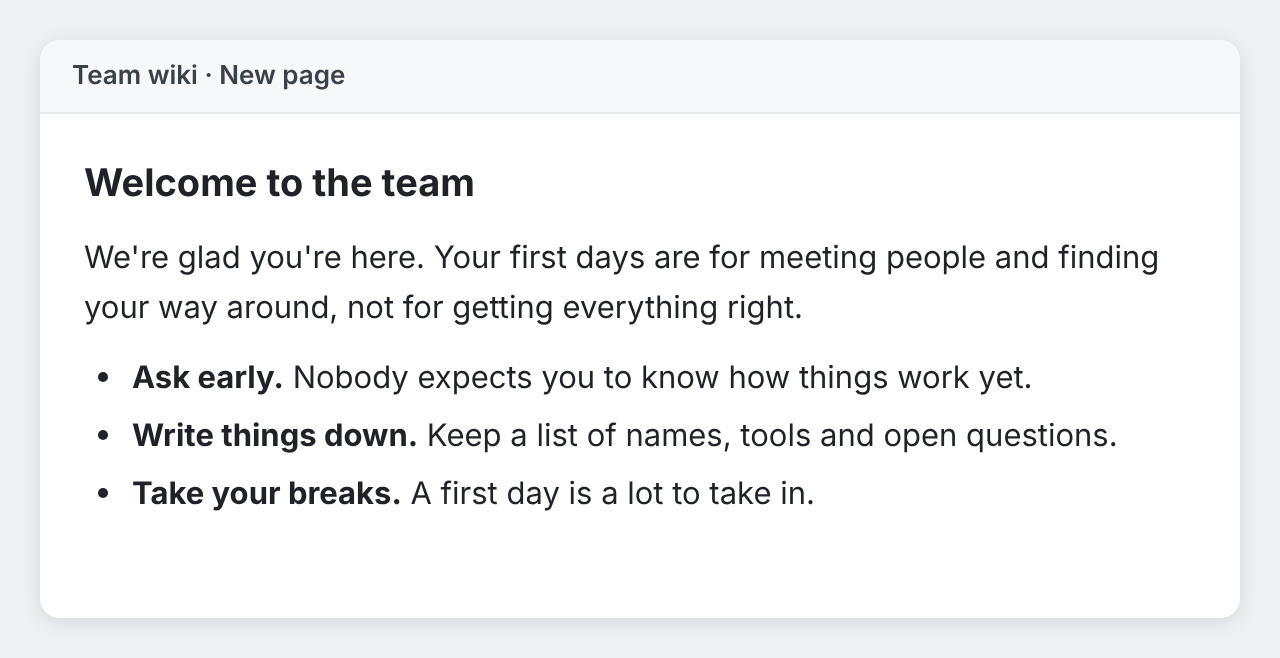
Ask for a how-to, a plan or some code and the draft comes with headings, numbered steps, bold text and code blocks. Where you insert it decides what stays:
- Editors that take formatting, as in web mail, wikis and content tools, keep the headings, lists and code blocks.
- Plain text boxes get Markdown, the plain-text way of writing headings and lists. The card says so.
- Chat boxes get plain text, ready to send.
When a page won't take inserted text at all, the draft goes on the clipboard and the card tells you which keys paste it.
Replies in chats and email
On chat sites such as WhatsApp Web, Telegram and Slack, and in web mail such as Gmail and Outlook, the button says Draft a reply, Draft a message or Draft an email instead. When you click it, it reads the conversation on screen, up to its last 20 messages, and suggests a reply in the conversation's language. Type what to change, such as “shorter” or “say no politely”, and it rewrites the draft.
Out of your way when you don't need it
The button only appears on the first click into an empty field, or on a fresh line after a pause, and never in lists, quotes or code. Typing makes it go away. Pass it by three times in a row and it stays away from that page for a day; once that has happened on three pages of a website within a week, it stays away from the whole site for a week. The switch “Offer to write in empty fields” in the extension's settings turns it off, and turning it back on brings it back everywhere.
Where your prompts stay
Write with a prompt runs with Chrome Built-in AI on your own computer, like the rest of Private Writing Assistant. Your request, the text around the cursor, the conversation it replies to and the draft are never sent to us or to any third party, such as an AI service. There's no account to sign up for, so we don't know who you are. Your last four prompts are kept in Chrome's storage on your computer. Usage stats, unless you switch them off, count things like a draft's length in words, never the text. How it works has the details.
Version 1.4 reaches your Chrome by itself. New here? Add Private Writing Assistant, click into an empty text box and say what you need.