Improve prompt: clearer requests for AI chat sites, written on your computer

Private Writing Assistant
Check grammar and rewrite text with AI that runs on your device. Free.
 Add to Chrome
 Add to Edge
 Add to Brave
 Add to Opera
 Add to Vivaldi
 Download for Mac
 Get it from Microsoft Store
“Write me a cover letter” gets you a cover letter, just not yours. The assistant has to guess the job, the tone, the length and what you've done, and it guesses generic. Most disappointing answers start with a prompt that left the important parts out.
In short
Improve prompt is a quick action that rewrites the prompt you're typing on an AI chat site such as ChatGPT or Claude, so the request says exactly what you want, with the context and the shape of the answer. It runs on your computer, with Chrome Built-in AI or, on a Mac, the open-source AI model in our free Mac app: your draft prompt is improved there, and it is never sent to us. It keeps your facts, never invents new ones, and asks the assistant to ask you for anything missing.
What a better prompt adds
AI assistants answer the question you ask, not the one you meant. Improve prompt checks your draft against five things a good request usually has, and fills in what it can read from your words:
- The task: what to produce or do, such as write, explain, compare or plan.
- The subject: a specific topic instead of “something” or a whole field.
- The audience or purpose: who the answer is for, or what you'll use it for.
- The format: a list, a few paragraphs, a table, a word count.
- The context: the details the assistant can't answer well without.
It never makes up a company name, a number or a detail about you. When something is missing, the improved prompt ends by asking the assistant to ask you for it first, so you don't get an answer built on guesses.
Try it on your next prompt
- Open an AI chat site such as ChatGPT, Claude, Perplexity or Microsoft Copilot and type your prompt as you normally would.
- Stop typing for a moment. After about three seconds, the Quick actions bar appears under your prompt with Improve prompt on it. It only shows for prompts of six words or more, so short replies like “yes, go on” stay quiet.
- Click Improve prompt. A card shows the improved version in the same language you wrote in.
- Click Replace to put it in the chat box, Copy to use it elsewhere, or the round arrow, Try again, for another version. Then send it as usual.
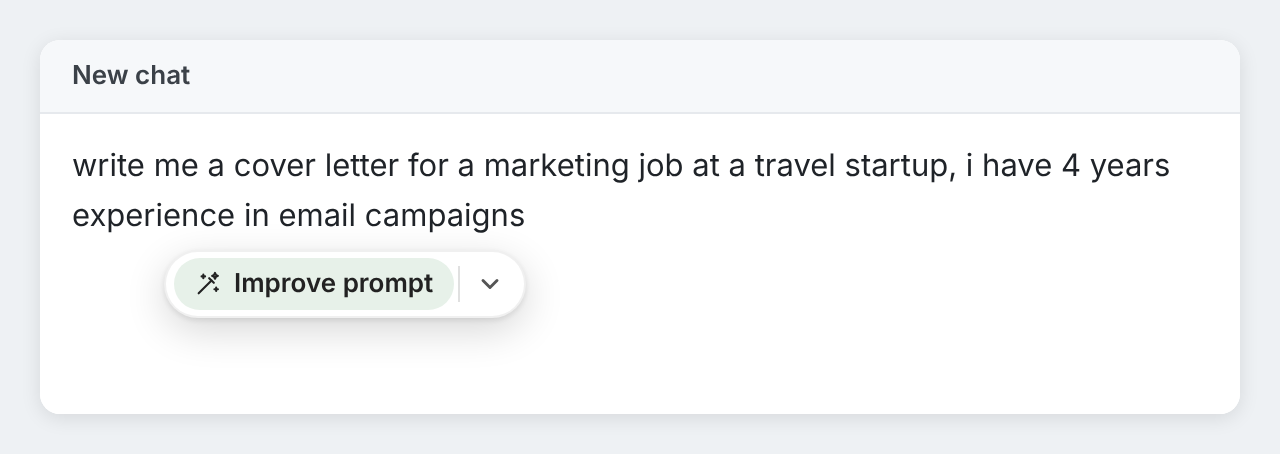
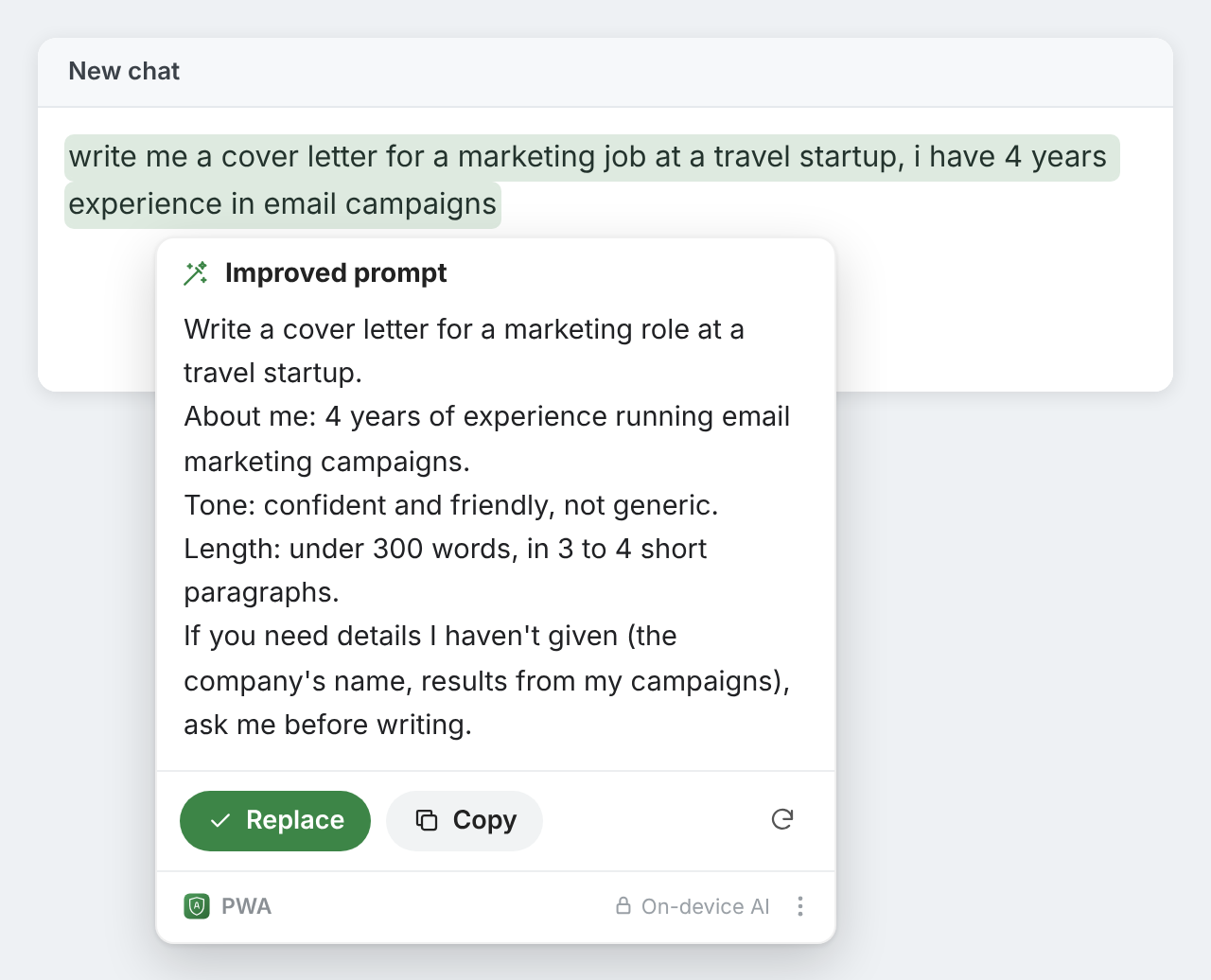
If your prompt already says what it should, the card tells you so instead of changing it for the sake of it. You can also select part of a prompt: Improve prompt then sits first on the bar and still works on the whole prompt.
On chat sites, prompts and grammar together
A prompt is a working note to a machine, but a typo can still change what the AI understands. On AI chat sites, Private Writing Assistant checks your prompt as it does everywhere else, with underlines and its badge, and offers Improve prompt on top. If you've ever wanted a sharper prompt for a Write with a prompt draft, the same habits help there too.
Don't want it? On the settings page, switch off Improve prompts on AI chat sites; grammar checking stays on. The Quick actions switches turn the bar off on one site or everywhere.
Where your draft prompt goes
Improve prompt runs on your computer, with Chrome Built-in AI or, on a Mac, the open-source AI model in our free Mac app. The prompt you're drafting is improved right there: it's never sent to us or to any third party while you work on it. Once you press send on the chat site, it goes to that AI service as it always would, so the improvement doesn't change what the service sees, only how clearly you ask. There's no account to create, so we don't know who you are, and usage stats, which you can switch off, carry a random ID and never your text. How it works has the details.
Next time an AI answer misses the point, pause before you send and let Improve prompt sharpen the question first.
Add to ChromeAdd to EdgeAdd to BraveAdd to OperaAdd to VivaldiDownload for MacGet it from Microsoft Store